Creating a Parent Account
Before you can manage chores, approve completed tasks, or track screen time, you'll need to create a parent account.
Creating an account only takes a few minutes.
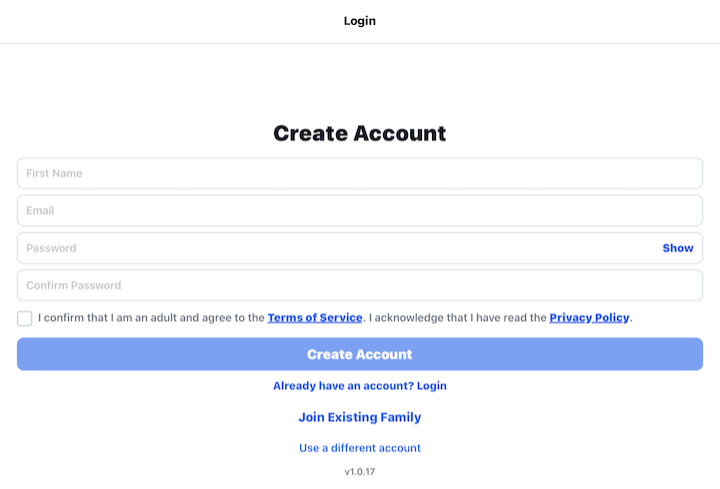
Step 1: Open Barnacle Bucks
When you launch Barnacle Bucks for the first time, you'll see the login screen.
Tap Create Account.
Step 2: Enter Your Information
Fill in the required information:
- First Name
- Last Name
- Email Address
- Password
Choose a strong password that you can remember.
When you're finished, tap Create Account.
Step 3: Verify Your Email Address
Barnacle Bucks will send a verification email to the address you entered.
Open the email and tap the verification link.
Once your email has been verified, return to the app and sign in using your email address and password.
Tip: If you don't see the email, check your Spam or Junk folder.
Step 4: Choose Parent Mode
After signing in for the first time, you'll be taken to the Choose User screen.
Tap Parent to continue setting up your account.
Step 5: Create Your Parent PIN
You'll be asked to create a Parent PIN.
This PIN protects your family's settings and prevents children from accessing the Parent Area.
Choose a PIN that's easy for you to remember but difficult for others to guess.
If your device supports biometrics, you can also use Face ID, Touch ID, or fingerprint authentication after your PIN has been created.
Step 6: You're Ready!
After setup is complete, you'll arrive at the Parent Dashboard.
From there you can:
- Add your children.
- Assign chores.
- Approve completed chores.
- Manage screen time.
- Invite another parent or caregiver.
- Configure your family settings.
What's Next?
Your next step is usually to add your first child.
Open:
Parent Dashboard → Manage Children
From there you can create a child profile and, if needed, set up a child device using a Family Setup Code.
Tips
- Use an email address you check regularly.
- Choose a strong password and keep it secure.
- Keep your Parent PIN private.
- You can change your password or Parent PIN later from Account Settings.