Child Dashboard
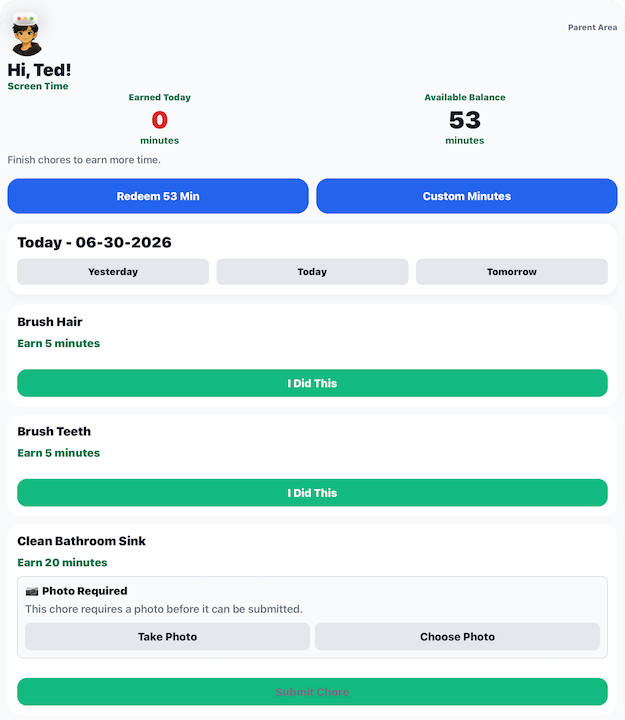
The Child Dashboard screen is the main screen children use every day. From here they can:
- View available chores
- Complete assigned chores
- Submit photo proof when required
- Track earned and available screen time
- Redeem screen time
- View completed chores
Screen Time Summary
At the top of the screen are two balances.
Earned Today
Shows how many minutes have been earned through approved chores today.
This number resets each day.
Available Balance
Shows how many minutes are currently available to redeem.
This balance carries over until the minutes are used.
Redeem Screen Time
Tap Redeem to start a screen time session using your available minutes.
Barnacle Bucks keeps track of:
- When the session started
- When it ends
- How many minutes were redeemed
Active Screen Time
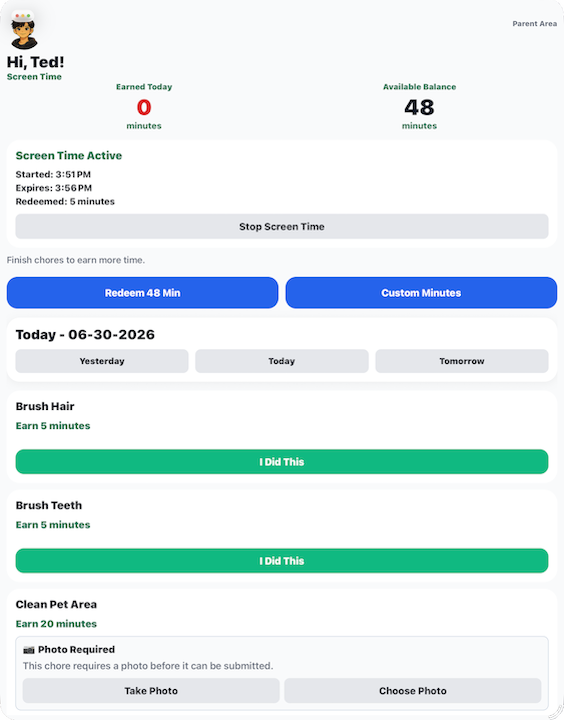
While screen time is active, a status card appears showing:
- Start time
- End time
- Redeemed minutes
If needed, tap Stop Screen Time to end the session early.
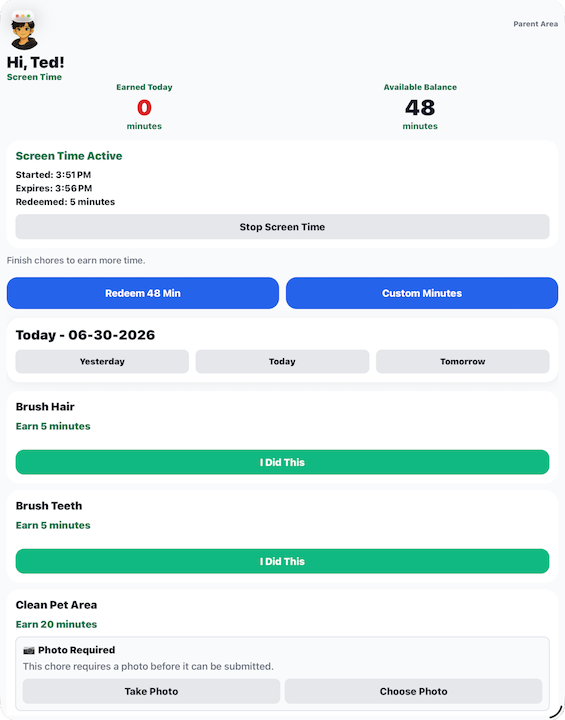
Unused minutes may be restored by a parent.
Today's Chores
Each assigned chore shows:
- Chore name
- Reward minutes
- Completion button
Tap I Did This after finishing the chore.
Chores Requiring Photo Proof
Some chores require a photo before they can be submitted.
When photo proof is required you'll see:
- Take Photo
- Choose Photo
After attaching a photo, tap Submit Chore.
The chore is then sent to a parent for approval.
Completed Chores
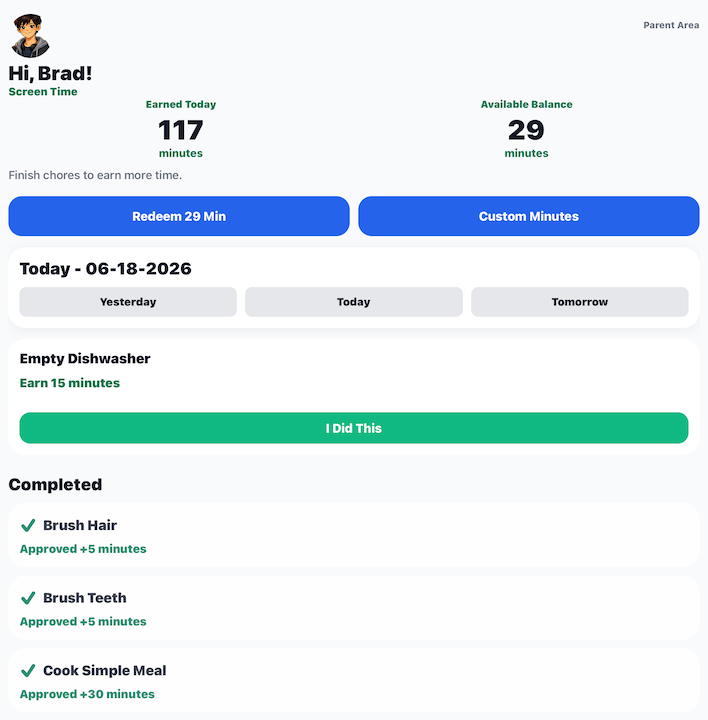
Completed chores move to the Completed section.
Each completed chore shows whether it has been:
- Waiting for approval
- Approved
- Rewarded with screen time
Yesterday, Today, and Tomorrow
Use the buttons near the top of the chore list to switch between:
- Yesterday
- Today
- Tomorrow
This lets children:
- Review yesterday's completed chores
- Complete today's chores
- See what chores are scheduled tomorrow
When Screen Time Ends
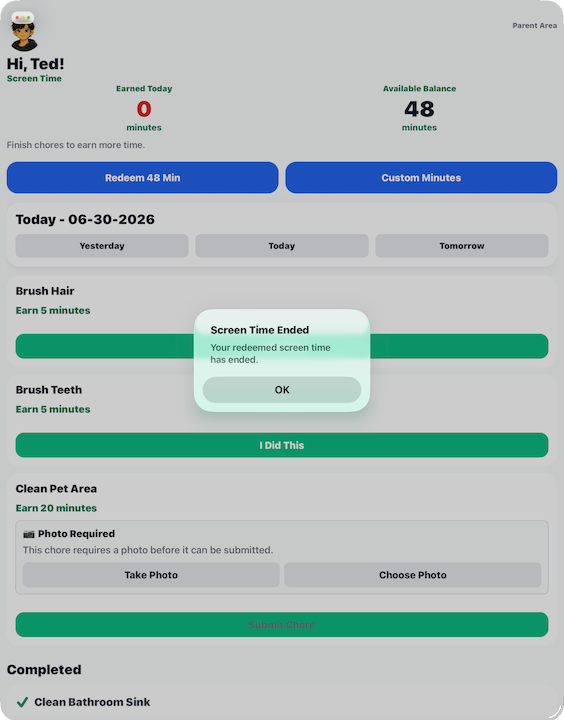
When redeemed screen time expires, Barnacle Bucks displays a notification letting the child know the session has ended.